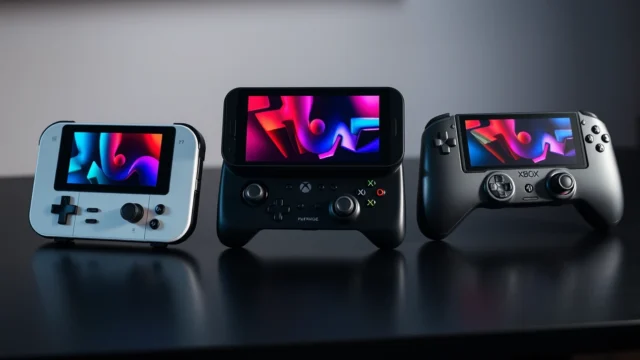
EmuDeck 2.7 Setup Guide: 12 Steps on Steam Deck [2026]

![EmuDeck 2.7 Setup Guide: 12 Steps on Steam Deck [2026]](https://trendintech.com/au/wp-content/uploads/sites/9/2026/10/emudeck-2-7-setup-guide-steam-deck-2026-gen.webp)
EmuDeck just had its biggest update of the year. Version 2.7, released on September 30, 2026, rewrites how the tool handles Steam Machine-class hardware and adds 1080p and 4K presets that finally make living-room emulation setups feel less like guesswork. If you have been putting off setting up EmuDeck on your Steam Deck, a Windows PC, or a Bazzite handheld, this is the version worth starting with.
This tutorial walks through a full EmuDeck 2.7 install from a blank system to a working, multi-console emulation front end, covering SteamOS, Bazzite, and Windows along the way. We will configure RPCS3 for PlayStation 3 titles, set up Switch emulation through Ryujinx-derived options, and get controllers mapped automatically using the new AutoMap feature. By the end you will have a repeatable setup you can apply to a Steam Deck, a Legion Go, a ROG Ally, or a plain desktop PC.
Don't miss new tech stories on Google
Add TrendinTech Australia once in the Google app and our stories appear in your news suggestions.
What Is EmuDeck and Why Version 2.7 Matters
EmuDeck is a free, open source installer and configuration tool that sets up and tunes a full stack of console emulators on a single device. Instead of manually downloading RetroArch cores, PCSX2, RPCS3, Ryujinx-based Switch emulators, and a frontend like EmulationStation DE one by one, EmuDeck installs all of them together and applies sensible default settings for controllers, save paths, and BIOS files. It originally built its reputation on Steam Deck, but it now runs on SteamOS, Bazzite, Windows, and other Linux distributions.
Version 2.7 shipped on September 30, 2026 and is the most consequential release EmuDeck has put out in months. The update expands support across SteamOS, Linux, and Windows at once, rather than shipping Steam Deck features first and porting them later. It also introduces 1080p and 4K emulator presets aimed squarely at Steam Machine-style desktop boxes, according to coverage from VideoCardz. That is a meaningful shift: EmuDeck was built around a 1280×800 handheld screen, and tuning shaders, resolution scaling, and frame pacing for a 4K television is a very different problem.
On the emulator side, EmuDeck 2.7 updates its RPCS3 configuration and adds a new RPCS3 ISO parser, which speeds up library scanning for PlayStation 3 games considerably. It also touches configuration for Ryujinx, melonDS, RMG, Xemu, and Supermodel, per PC Guide’s reporting on the release. The headline usability feature is AutoMap, a new controller-mapping system that detects a connected gamepad and automatically applies per-emulator button layouts instead of asking you to configure each emulator’s input settings by hand.
Timing matters here too. Bazzite, the SteamOS-like Linux distribution many handheld and Steam Machine users run instead of Windows, pushed out build 44.20261006.1 on October 6, 2026, according to Linux Compatible’s release tracking. EmuDeck 2.7 and the new Bazzite build landed within a week of each other, and the two are commonly paired, so this is a good moment to set up both together rather than patching an older EmuDeck install piecemeal.
EmuDeck’s growth over the past couple of years tracks almost exactly with the Steam Deck’s own popularity. Valve’s handheld gave emulation enthusiasts a single, widely owned piece of hardware worth building tools around, and EmuDeck became the default answer to “how do I get my Steam Deck running old consoles” for a huge share of new owners. The project has since outgrown that single-device identity. With 2.7, the team is explicitly positioning EmuDeck as a cross-platform emulation layer rather than a Steam Deck accessory, which is why this release touches Windows and generic Linux configurations just as heavily as the SteamOS side.
Prerequisites: What You Need Before Starting
Get these in place before you start the install. Skipping prerequisites is the single biggest reason EmuDeck setups fail halfway through.
- Hardware: Steam Deck (LCD or OLED), ROG Ally, Legion Go, or any x64/ARM64 PC. EmuDeck’s Windows and Linux builds both need a 64-bit processor; a GTX 1060-class GPU or better is recommended for PS3 and Switch emulation workloads.
- Operating system: SteamOS 3.x, Bazzite 44.20261006.1 or newer, or Windows 10/11 64-bit. EmuDeck 2.7 explicitly supports all three.
- Free storage: at least 20GB for the emulator stack itself, plus however much room your game library needs. PS3 and Switch titles alone can run into hundreds of gigabytes.
- A legally obtained firmware/BIOS set. RPCS3 needs PS3 firmware, and Switch emulation needs console keys and firmware dumped from hardware you own. EmuDeck does not provide these and will not work correctly without them.
- A controller. Built-in Steam Deck/ROG Ally controls work out of the box; USB or Bluetooth pads work fine with AutoMap.
- Internet connection for the initial download, which pulls several gigabytes of emulator binaries.
- Desktop Mode access if you are on a Steam Deck — EmuDeck installs from Desktop Mode, not Gaming Mode.
One clarification worth making up front: EmuDeck is an installer and configuration layer, not an emulator in its own right. It manages RPCS3 for PlayStation 3, PCSX2 for PlayStation 2, Xemu for the original Xbox, RetroArch cores for older systems, and a Ryujinx-derived option for Nintendo Switch titles. Keep that distinction in mind, because troubleshooting often means checking the underlying emulator’s settings, not just EmuDeck’s.
Step 1: Choose Your Platform (Steam Deck, Bazzite, or Windows)
EmuDeck 2.7’s cross-platform expansion means the right starting point depends on what hardware you already own, not which platform has the “best” version of the tool.
If you own a Steam Deck and want to stay on Valve’s official SteamOS, install EmuDeck directly in Desktop Mode. This is the lowest-friction path and the one most existing guides assume. If you want more control over the underlying OS, want a Steam Machine-style living room PC, or are building a custom handheld, Bazzite is worth considering instead. It is a Fedora-based, SteamOS-flavored distribution that the Linux gaming community has rallied around, and the October 6, 2026 build (44.20261006.1) ships close enough behind EmuDeck 2.7 that compatibility issues are minimal. If you are on a conventional Windows gaming PC or handheld like the ROG Ally running Windows, EmuDeck’s Windows build gets the same 2.7 feature set, just installed through a different path.
There is no wrong choice here for emulation specifically, since EmuDeck 2.7 treats all three as first-class targets. The decision mostly comes down to whether you want Valve’s walled-garden SteamOS, a more open Linux distribution, or Windows compatibility with non-emulation software.
Step 2: Install Bazzite (If Starting From Scratch)
Skip this step if you already have SteamOS or Windows installed and are just adding EmuDeck. If you are building a dedicated emulation box or flashing a handheld fresh, start here.
- Download the Bazzite image matching your hardware (handheld, desktop, or Steam Deck image) from the official Bazzite project.
- Flash it to a USB drive of at least 16GB using a tool such as Ventoy or balenaEtcher.
- Boot your target device from the USB drive and follow the guided installer, selecting your drive and confirming the format.
- Reboot into Bazzite once installation finishes, then run a system update to pull build 44.20261006.1 or newer before installing anything else.
Bazzite ships with Steam preinstalled and defaults to a gamepad-friendly interface, so the jump into EmuDeck afterward feels similar to doing it on an actual Steam Deck.
Step 3: Download and Run the EmuDeck 2.7 Installer
With your OS ready, grab the installer itself.
- On Steam Deck or Bazzite, switch to Desktop Mode and open a web browser.
- Go to the official EmuDeck download page and select the Linux/SteamOS build, or the Windows build if you are on a PC.
- Download the installer package to your Downloads or Desktop folder.
- On Linux/SteamOS, make the downloaded file executable and run it from a terminal; on Windows, run the downloaded .exe and allow it through any SmartScreen prompt.
- The installer opens a graphical setup wizard. Confirm it reports version 2.7 before continuing — older cached installers sometimes get picked up by browser downloads.
# Linux/SteamOS/Bazzite terminal example
cd ~/Downloads
chmod +x EmuDeck-Installer.AppImage
./EmuDeck-Installer.AppImage
If the AppImage will not launch on Bazzite, confirm your user account has execute permissions on the Downloads directory and that you are not running the file from a read-only mount, which is a common snag on fresh installs.
Step 4: Run the Guided Setup and Pick Your Emulators
The EmuDeck wizard walks through storage location, emulator selection, and frontend installation.
- Choose where your ROMs and emulator binaries will live. On Steam Deck, pointing this at an SD card keeps your limited internal storage free; on desktop PCs, a secondary drive works well.
- Select “Standard” installation unless you specifically need a custom emulator list — Standard installs RetroArch, PCSX2, RPCS3, Xemu, and the Switch emulation option together.
- Choose EmulationStation DE as your frontend if you want a single unified library view across every console; skip it if you prefer launching emulators individually from Steam’s library.
- Let the installer download and configure each emulator. This step pulls several gigabytes and can take 15 to 40 minutes depending on your connection.
Resist the urge to cancel mid-download if progress looks stalled on a specific emulator. RPCS3 and the Switch emulator package are the largest downloads in the stack and routinely sit at the same percentage for a minute or two while large archives extract.
Step 5: Add BIOS Files and Firmware
No emulator in the EmuDeck stack will boot real games without the correct firmware, and this is the step most new users get stuck on.
- For RPCS3, dump the PS3 firmware (.PUP file) from a PlayStation 3 console you own, or download it directly from Sony’s official firmware page, then point RPCS3’s firmware installer at that file.
- For Switch emulation, you need the console’s unique keys (prod.keys) and a firmware dump, both of which must come from a Switch console you own. EmuDeck’s wiki documents exactly which folder structure the emulator expects for these files.
- For PCSX2, BIOS files are optional for some homebrew but required for commercial PS2 games; dump these from a PS2 you own.
- Drop each file into the BIOS folder EmuDeck created during setup — typically under your chosen storage root in a path like
Emulation/bios.
EmuDeck’s BIOS checker, accessible from its main menu, flags which files are missing or misnamed. Run it immediately after this step rather than waiting until a game fails to boot.
Step 6: Configure RPCS3 With the New ISO Parser
EmuDeck 2.7’s updated RPCS3 configuration and new ISO parser are two of the most practical changes in this release, since PS3 game libraries can run into hundreds of discs and loose files.
- Launch RPCS3 through EmuDeck’s frontend or its standalone shortcut.
- Open Settings and confirm the GPU backend is set to Vulkan, which generally performs better than OpenGL on both AMD and Nvidia hardware for PS3 titles.
- Add your games folder under Boot Game List, then let the new ISO parser scan the directory — this is noticeably faster than the parser in older EmuDeck releases, particularly on large libraries.
- Enable the shader cache and set Frame Limit to match your display’s refresh rate to avoid screen tearing.
# Example RPCS3 config snippet (config.yml) adjusted by EmuDeck 2.7
Core:
  PPU Decoder: Recompiler (LLVM)
  SPU Decoder: Recompiler (LLVM)
Video:
  Renderer: Vulkan
  Resolution Scale: 100
  Shader Mode: Async with Vulkan pipelines
RPCS3 compatibility sits at roughly 75% of its library rated playable or better as of mid-2026 reporting, so expect the majority of popular PS3 titles to run, with occasional problem games needing specific per-title settings you can find in RPCS3’s own compatibility database.
Step 7: Set Up Switch Emulation Through EmuDeck
Switch emulation looks different in late 2026 than it did a couple of years ago, and it is worth understanding why before you configure anything. The original Yuzu and Ryujinx projects both shut down after legal pressure from Nintendo, and Citron, which picked up some of that user base, was itself taken down in a February 2026 wave of enforcement action, according to reporting on the state of the Awesome-GameEmulator project list. EmuDeck’s current Switch option is built around the maintained successor projects rather than the original, discontinued codebases.
- Open EmuDeck’s emulator list and confirm which Switch-compatible build it installed — this is managed automatically during Standard setup, so you should not need to source it separately.
- Place your prod.keys file and firmware dump in the exact folder path the emulator’s documentation specifies, usually nested under your Emulation storage root.
- Add your legally owned Switch game dumps to the configured ROMs folder.
- In the emulator’s graphics settings, start with the Vulkan backend and default resolution before trying any upscaling, since pushing resolution too high on unsupported titles is a common source of crashes.
If you specifically want LDN local multiplayer support, Ryubing — a maintenance-mode continuation of the Ryujinx codebase that supports Windows, Linux, and macOS on both x64 and ARM64 — is a reasonable manual alternative outside EmuDeck’s default install, since EmuDeck can also be configured to install and manage it on SteamOS. KBVE’s technical documentation covers the exact folder layout Ryubing expects if you go that route.
Step 8: Use AutoMap for Controller Configuration
AutoMap is the headline quality-of-life feature in EmuDeck 2.7, and it solves a real problem: previously, every emulator in the stack needed its own manual controller mapping, which meant repeating the same button assignments five or six times for a single gamepad.
- Connect your controller — built-in Steam Deck controls, a DualSense, an Xbox pad, or a third-party gamepad — before opening EmuDeck’s settings menu.
- Navigate to the AutoMap section and select your connected controller from the detected device list.
- Apply the mapping across all installed emulators with a single confirmation, rather than configuring RetroArch, RPCS3, PCSX2, and the Switch emulator individually.
- Test each system briefly after applying AutoMap, since a small number of emulator-specific button layouts (particularly for PS3 titles with analog triggers) sometimes need a manual tweak afterward.
On SteamOS and Bazzite specifically, EmuDeck 2.7 also automates SteamDeckGyroDSU installation for Ryujinx-based Switch emulation, which enables motion-control-dependent games to work correctly without a separate manual install step.
Step 9: Configure Resolution Presets for Your Display
This is where EmuDeck 2.7’s Steam Machine-oriented changes matter most. Earlier versions were tuned almost entirely around the Steam Deck’s handheld display, which made desktop and TV setups a manual tuning exercise.
- Open EmuDeck’s display or performance settings menu.
- If you are running on a handheld, keep the default handheld-tuned preset, which balances battery life against visual fidelity.
- If you are running on a desktop PC or a Steam Machine-style box connected to a TV, select the new 1080p or 4K preset depending on your display.
- Apply the preset and relaunch a test game in each emulator category (PS3, Switch, and one RetroArch core) to confirm frame pacing looks correct before committing to a full library setup.
The 4K preset in particular pushes resolution scaling harder on RPCS3 and the Switch emulator, so expect higher GPU load. A discrete GPU in the RTX 3060 class or better is a realistic baseline for smooth 4K PS3 emulation; integrated graphics will generally need to stay on the 1080p preset or lower.
Step 10: Organize Your Library and Set Up Box Art
With emulators configured, the last functional step is making your library easy to browse.
- If you installed EmulationStation DE, open its built-in scraper and connect it to a metadata source to pull box art, descriptions, and release dates automatically.
- Organize ROM folders by console using the folder structure EmuDeck created during Step 4 — mixing systems in one folder is the most common cause of a scraper matching the wrong game.
- If you prefer launching through Steam directly, use EmuDeck’s “Add to Steam” function to generate non-Steam game shortcuts with proper artwork for each title.
- Rebuild your Steam Deck’s Gaming Mode library (or Big Picture Mode on desktop) after adding shortcuts so new entries appear immediately.
Step 11: Verify Everything Works
Before calling the setup finished, run through a short verification pass.
- Launch one game from each configured console and confirm it boots to a playable state, not just a splash screen.
- Check that your controller works without needing to touch per-emulator input settings, confirming AutoMap applied correctly.
- Save and reload a game in at least one emulator to confirm save states or in-game saves are writing to the expected storage location.
- If you selected a 1080p or 4K preset, check frame pacing during actual gameplay rather than just a menu screen, since menus rarely reveal performance problems.
Step 12: Keep EmuDeck and Your Emulators Updated
Emulation is a moving target. RPCS3 itself shipped a new build on September 30, 2026 and continues to push frequent updates, while individual Switch-emulation projects update on their own schedules outside EmuDeck’s release cycle.
- Open EmuDeck’s updater periodically to pull the latest point release rather than waiting for major version numbers.
- Check individual emulator changelogs before major game releases, since compatibility fixes for specific titles often land in emulator-specific builds before EmuDeck bundles them.
- Back up your BIOS and keys folder separately from your EmuDeck install, so a reinstall or OS update does not force you to re-source firmware files.
Common Pitfalls When Setting Up EmuDeck
These are the mistakes that come up most often during EmuDeck installs, based on patterns across EmuDeck’s own documentation and community troubleshooting threads.
- Installing from Gaming Mode instead of Desktop Mode on Steam Deck. EmuDeck’s installer needs a full desktop environment to run; it will not launch correctly from Gaming Mode.
- Using an outdated cached installer. Browsers sometimes serve a previously downloaded EmuDeck package instead of fetching 2.7 fresh. Always verify the version number in the setup wizard before proceeding.
- Skipping the BIOS checker. Many users discover missing firmware only after a game fails to boot, when a one-click check at install time would have caught it immediately.
- Placing ROMs in the wrong console folder. This breaks both the scraper and, in some cases, the emulator’s own file detection.
- Running the 4K preset on integrated graphics. This produces unplayable frame rates on PS3 and Switch titles; stick to 1080p or the handheld preset on weaker GPUs.
- Mixing manually installed emulators with EmuDeck-managed ones. Installing a second copy of RPCS3 outside EmuDeck’s folder structure creates conflicting configuration files and duplicate library entries.
- Ignoring storage location during setup. Choosing internal storage on a Steam Deck when an SD card is available leads to running out of space mid-library-build.
- Not re-running AutoMap after switching controllers. Swapping from a built-in handheld controller to a USB pad requires reapplying AutoMap; it does not persist automatically across different physical controllers.
EmuDeck Compatibility in 2026: What Actually Runs Well
Compatibility is the question that matters most before you invest an afternoon in a setup, so it is worth being specific about where each console stands rather than treating “emulation” as one uniform experience. The consoles EmuDeck manages are at very different points in their maturity curves.
PCSX2, the PlayStation 2 emulator EmuDeck installs by default, is the most mature piece of the stack. Version 2.8.0 shipped on August 28, 2026 and reviewers tracking the Windows emulator landscape put its compatibility at roughly 98% of the PS2 library playable, according to tech-insider.org’s rundown of best Windows emulators for September 2026. That level of polish is the product of nearly two decades of continuous development, and it is a useful baseline for what “finished” emulation looks like.
RPCS3 is further behind but still strong for a system as complex as the PlayStation 3’s Cell architecture. Coverage of PS3 emulation progress put RPCS3 past a 75% compatibility milestone around July 2026, with ongoing builds (including the September 30, 2026 release EmuDeck 2.7 was tuned against) continuing to close gaps in specific titles rather than overhauling the core emulator. Expect the large majority of major first-party and third-party PS3 releases to run acceptably, with a smaller set of technically demanding titles needing per-game tweaks you can find in RPCS3’s own compatibility list.
Switch emulation is the least settled of the three, not because the underlying technical work is behind PS3 emulation, but because the ecosystem itself has been disrupted repeatedly. Independent tracking of Windows emulator options put the current Switch option’s “no issues reported” rate around 75% as of early September 2026, roughly in line with RPCS3, but that number is attached to a newer, smaller-team project than Ryujinx was before its shutdown, so expect a faster pace of both fixes and occasional regressions than you would see on the more established PCSX2 or RPCS3 codebases.
| Console | Emulator EmuDeck installs | Approx. compatibility (2026) | Latest version referenced |
|---|---|---|---|
| PlayStation 2 | PCSX2 | ~98% playable | 2.8.0 (Aug 28, 2026) |
| PlayStation 3 | RPCS3 | ~75%+ rated playable or better | Sept 30, 2026 build |
| Nintendo Switch | Ryujinx-derived option | ~75% “no issues” reported | Actively updated, 2026 |
| Original Xbox | Xemu | High for popular titles | Updated in EmuDeck 2.7 |
The practical takeaway: if your library leans heavily on PS2 titles, expect EmuDeck to feel close to a finished product out of the box. If it leans on PS3 or Switch titles, budget extra time for per-game troubleshooting, and keep an eye on both EmuDeck’s changelog and the underlying emulator’s own release notes, since fixes for specific games often land there first.
EmuDeck 2.7 vs Previous Versions: What Changed
| Feature | Before 2.7 | EmuDeck 2.7 (Sept 30, 2026) |
|---|---|---|
| Platform support | Steam Deck-first, other platforms secondary | SteamOS, Linux, and Windows updated together |
| Display presets | Handheld-tuned defaults only | Added 1080p and 4K presets for Steam Machine-style setups |
| RPCS3 library scanning | Older, slower ISO parsing | New dedicated RPCS3 ISO parser |
| Controller setup | Manual mapping per emulator | AutoMap applies mapping across all emulators at once |
| Switch motion controls | Manual SteamDeckGyroDSU install | Automatic install on SteamOS/Linux |
| Emulator configs touched | Varied by release | RPCS3, Ryujinx, melonDS, RMG, Xemu, Supermodel all updated |
Platform Comparison: Steam Deck vs Bazzite vs Windows for EmuDeck
| Factor | SteamOS (Steam Deck) | Bazzite | Windows |
|---|---|---|---|
| Setup difficulty | Low — official, guided | Medium — requires separate OS install | Low — familiar installer flow |
| Best for | Stock Steam Deck owners | Custom handhelds, Steam Machine-style desktops | Existing gaming PCs, ROG Ally on Windows |
| 4K preset support (2.7) | Limited by handheld display | Full support, desktop-oriented | Full support |
| Update cadence | Tied to Valve’s OS schedule | Frequent, independent builds (e.g. 44.20261006.1) | Independent of OS updates |
| Non-emulation software | Limited, Linux-only | Linux-only but more flexible | Full Windows compatibility |
Advanced Tips for a Better EmuDeck Setup
Once the basic install is working, a few adjustments make a noticeable difference in day-to-day use.
- Separate your storage tiers. Keep RPCS3 and Switch libraries, which benefit most from fast read speeds, on your quickest available drive, and push older RetroArch-core libraries to slower storage since load times matter less there.
- Use per-game shader precaching on RPCS3 before a long play session to avoid stutter during the first few minutes of a new title.
- Set per-title power profiles on Steam Deck rather than one global TDP limit — PS3 emulation is far more CPU-intensive than most RetroArch cores and benefits from a higher power ceiling.
- Keep a second, minimal EmuDeck profile on a spare SD card or partition if you are experimenting with the 4K preset, so a bad configuration does not force a full reinstall.
- Check emulator-specific compatibility lists (RPCS3’s and the Switch emulator’s own databases) before assuming a crash is an EmuDeck configuration problem rather than a known per-game issue.
Troubleshooting EmuDeck 2.7 Setup Issues
Work through these before assuming a fresh reinstall is necessary.
- Installer will not launch on Bazzite: confirm the AppImage has execute permission and that you are not running it from a read-only or network-mounted directory.
- EmuDeck reports an old version number: clear your browser cache or re-download directly from the official EmuDeck site rather than a mirrored link, since cached installers can serve a stale package.
- RPCS3 will not boot any games: re-run the BIOS checker; a missing or corrupted PS3 firmware file is the most common cause, followed by an incorrectly placed firmware file outside the expected folder.
- Switch titles crash on launch: verify prod.keys and firmware are current and placed in the correct directory — outdated keys are a frequent cause after a console system update invalidates older dumps.
- Controller is not detected by AutoMap: disconnect and reconnect the controller, confirm it is paired (for Bluetooth pads), and check that no other input-management software is intercepting the device.
- 4K preset causes severe slowdown: drop to the 1080p preset first; if performance is still poor, your GPU likely falls below the recommended tier for 4K PS3/Switch emulation.
- Games missing from EmulationStation DE: re-run the scraper and confirm ROM files sit in the exact per-console folder EmuDeck created, since misplaced files are invisible to the scraper.
- Save files disappear after an update: check that your storage location was not reset during the update and that saves are pointing at your persistent storage root rather than a temporary path.
- Audio stutters only in RPCS3: try switching the audio backend in RPCS3’s settings and confirm the shader cache has fully built for that specific title.
- EmuDeck update fails partway through: check available disk space first — partial updates are frequently caused by running out of room during the download/extract phase.
Building a Complete EmuDeck Project: A Realistic Example
To tie the steps above together, here is what a complete, working setup looks like end to end on a Bazzite desktop box connected to a 4K TV.
Start with Bazzite 44.20261006.1 freshly installed and updated. Download EmuDeck 2.7 from Desktop Mode and run a Standard install, pointing storage at a dedicated NVMe drive rather than the boot drive. During setup, select EmulationStation DE as the frontend for a unified library. After installation, add PS3 firmware and Switch prod.keys/firmware to their respective folders, then run the BIOS checker and confirm a clean pass.
Configure RPCS3 with the Vulkan backend and let the new ISO parser scan a 40-game PS3 library, which completes noticeably faster than it would have under EmuDeck’s previous RPCS3 configuration. Switch to the 4K preset given the TV connection and a discrete GPU in the RTX 3060+ class. Connect a DualSense controller, run AutoMap once, and confirm it applies correctly across RPCS3, the Switch emulator, and RetroArch without touching per-emulator input menus. Finally, scrape box art through EmulationStation DE and add the most-played titles to Steam directly for quick access from Big Picture Mode.
That full sequence, from a blank Bazzite install to a browsable, working multi-console library, typically takes 90 minutes to two hours, most of which is unattended download and extraction time rather than active configuration.
EmuDeck vs Manually Installing Each Emulator
A reasonable question before committing to EmuDeck: why not just install RPCS3, PCSX2, and a Switch emulator separately and skip the extra tool entirely? For a single emulator, that is a fair approach, and some advanced users still prefer it for the specific console they care most about. Where EmuDeck earns its place is in everything around the emulator itself.
Manually installing five or six emulators means five or six different settings menus, five or six different places to configure controller input, and five or six different folder conventions for ROMs, saves, and BIOS files. EmuDeck standardizes all of that into one folder structure and, as of 2.7, one controller-mapping pass through AutoMap. It also tracks which emulator versions it has installed and offers a single update path, rather than requiring you to separately watch GitHub releases or project Discords for every emulator in your stack.
The tradeoff is a thin layer of abstraction between you and each emulator’s native settings. Power users chasing maximum performance on one specific console sometimes bypass EmuDeck’s defaults and hand-tune RPCS3 or the Switch emulator directly. EmuDeck does not lock you out of this — its configuration files are the same files the standalone emulator would use — so you can treat it as a fast starting point and manually override settings afterward rather than an all-or-nothing choice.
Performance Expectations by Hardware Tier
Because EmuDeck now spans everything from a battery-powered handheld to a desktop Steam Machine, it helps to set realistic expectations by hardware class before you pick a resolution preset.
- Steam Deck (LCD or OLED) and similar handhelds: stick to the handheld-tuned default preset. PS2 titles through PCSX2 run comfortably at native or near-native resolution; PS3 and Switch titles are generally playable but benefit from a higher TDP power profile during demanding scenes.
- ROG Ally and Legion Go-class handhelds: similar expectations to Steam Deck, though the higher-wattage APUs in these devices give a bit more headroom for the 1080p preset if you are docked to an external display.
- Mid-range desktop PCs (RTX 3060/4060-class GPU): the 1080p preset is comfortable across the full emulator stack; the 4K preset is workable for PS2 and most PS3 titles but can strain on the most demanding Switch ports.
- High-end desktop PCs and Steam Machine-style boxes (RTX 4070 and above): the 4K preset introduced in 2.7 is squarely aimed at this tier, and it is where the new presets make the most visible difference compared with earlier EmuDeck releases.
If you are unsure which tier your hardware falls into, start one preset lower than you think you need. Dropping from 4K to 1080p is a thirty-second settings change; troubleshooting why a specific game stutters at the wrong preset can eat an entire evening.
Legal and Safety Notes
EmuDeck itself, RPCS3, and the maintained Switch-emulation projects it manages are legal software. The legal risk in emulation setups comes almost entirely from how firmware and game files are sourced. Only use BIOS files, console keys, and firmware dumped from hardware you personally own, and only use game files you have legally obtained. Downloading copyrighted game ROMs you do not own a legitimate copy of is piracy regardless of which emulator you run them on, and several Switch-emulation projects, including Citron, have already faced takedown action in 2026 specifically tied to this kind of misuse rather than the emulator code itself.
Frequently Asked Questions
Is EmuDeck 2.7 free to use?
Yes. EmuDeck is free and open source, and version 2.7 carries no new licensing cost or paywalled features.
Do I need a Steam Deck to use EmuDeck?
No. EmuDeck 2.7 supports SteamOS, Bazzite and other Linux distributions, and Windows, so it runs on a Steam Deck, a Bazzite-based handheld or desktop, a ROG Ally, a Legion Go, or a standard Windows PC.
What is the difference between EmuDeck and RPCS3?
RPCS3 is the actual PlayStation 3 emulator. EmuDeck is an installer and configuration tool that sets up RPCS3, alongside PCSX2, Switch emulation, and RetroArch cores, with unified controller mapping and library organization.
Can EmuDeck 2.7 run Nintendo Switch games?
Yes, through a maintained Ryujinx-derived option it configures automatically. Note that the original Yuzu and Ryujinx projects are no longer available following legal action, so EmuDeck’s current Switch support is built around their maintained successors instead.
What is AutoMap in EmuDeck 2.7?
AutoMap is a new controller-configuration feature introduced in version 2.7 that detects a connected gamepad and applies consistent button mapping across every installed emulator at once, instead of requiring separate manual setup in each one.
Does EmuDeck 2.7 support 4K output?
Yes. Version 2.7 added dedicated 1080p and 4K emulator presets aimed at Steam Machine-style desktop setups, in addition to the existing handheld-tuned defaults.
Is it legal to use EmuDeck and RPCS3?
The emulator software itself is legal. Legal risk comes from using firmware, console keys, or game files you do not have a legitimate right to, so only use dumps from hardware and games you personally own.
How long does a full EmuDeck 2.7 setup take?
A complete setup from a fresh OS install to a working, browsable multi-console library typically takes 90 minutes to two hours, most of it unattended download and extraction time.
Related Coverage
Mitchell Brandt
Mitchell Brandt is the Hardware & Gaming Reporter at TrendinTech, where he tests graphics cards, processors, consoles and peripherals and follows the games industry, from major publishers to the independent studios of Melbourne and Brisbane. His reviews are built on long test sessions rather than spec sheets, with a close eye on what Australian pricing and availability actually mean for buyers.
All stories by Mitchell Brandt (5)![LDPlayer 14 vs MuMu Player vs BlueStacks 10: 480 FPS [2026]](https://trendintech.com/au/wp-content/uploads/sites/9/2026/10/ldplayer-14-vs-mumu-player-vs-bluestacks-10-2026-gen-640x360.webp)
![GTA 6 Leak: New 25-Minute Gameplay Video Surfaces [2026]](https://trendintech.com/au/wp-content/uploads/sites/9/2026/10/wpshim-2669603-gta-6-leak-25-minute-gameplay-video-2026-640x360.webp)